
What happens after you make the image?
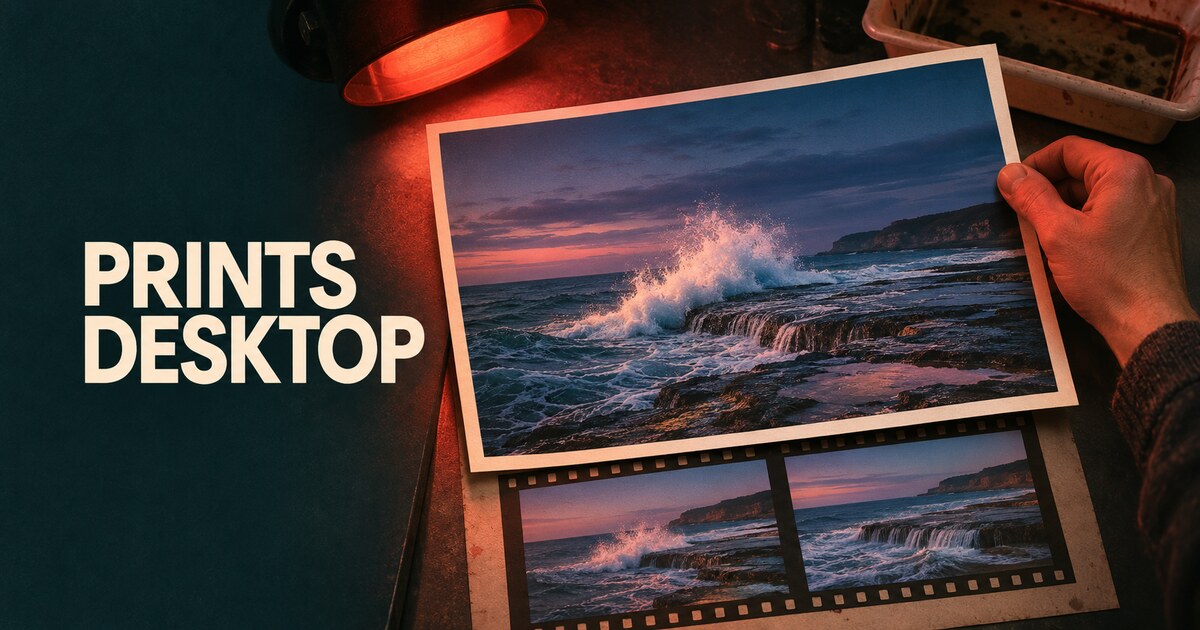
An album cover becomes a poster. A still from a game becomes the shot that sells it. Prints Desktop is a place to see those decisions side by side and keep the files worth coming back for.
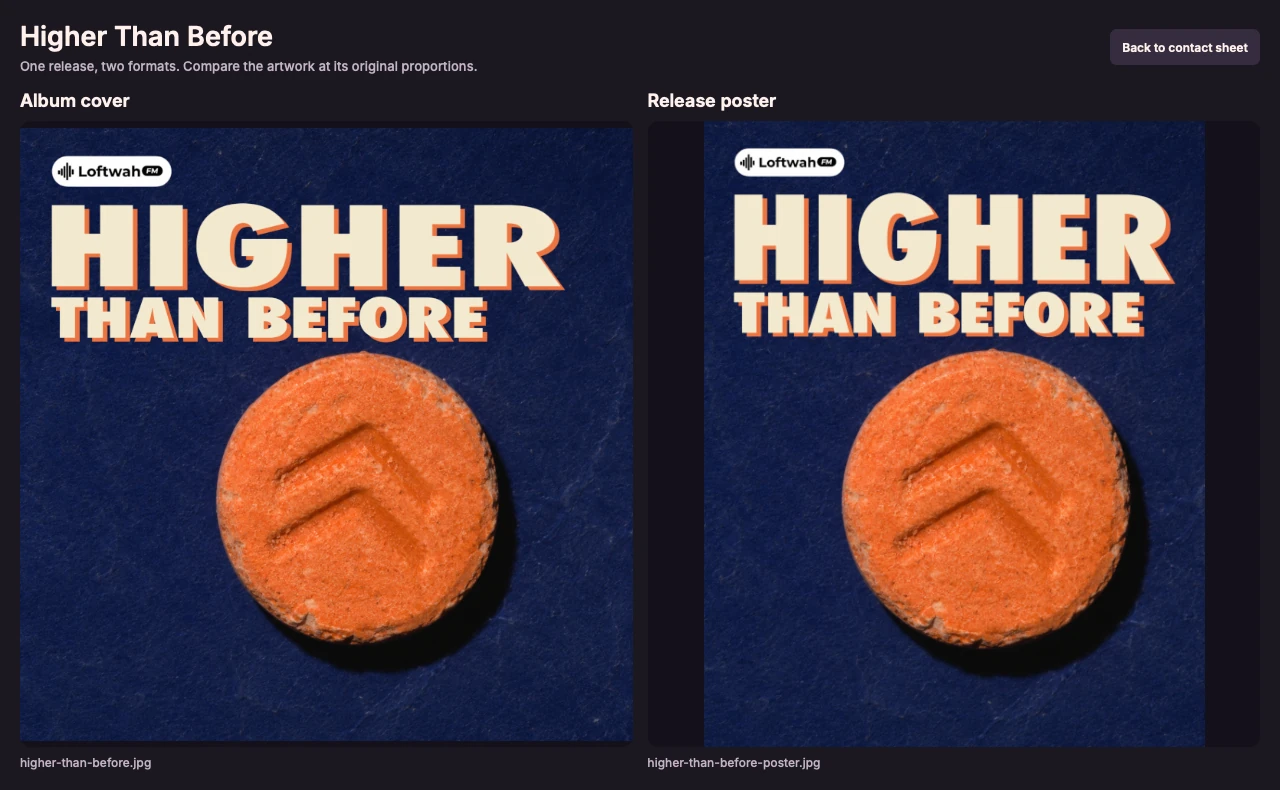
Open the preview and pick Higher Than Before. The album cover was designed to read as a square. The release poster has to do its job from across the room. Choose Compare formats and you can see how the lettering and space change between them. Both files are already there, even with Wi-Fi off.
That’s the first thing I wanted a creative app to get right. When a piece survives all the drafts, the exact file should be close at hand. So should the references and the other versions that explain why it works. The first edition starts with work we actually published for LoftwahFM, Fighter and Bubbles. Afterlight is a separate shelf of six imagined landscapes, with briefs you can turn into your own drafts.
Work through a piece, then take it with you
Find Fighter’s Before the Bell, open it full-size and inspect the faces in the ring. Favourite it to build a shortlist. Choose Export original when you want the file. Prints Desktop saves a copy with the original bytes. When you import your own image, the library links to the file where it already lives. Move it later and you can point the app to its new location.
The desktop is built in Rust with Anomaly’s native Rune toolkit. On the Mac you can use the menu bar, file dialogs and keyboard shortcuts to move through the archive. You can open the offline workspace without an account, and the software is open source. The first-project tutorial takes you through the cover comparison, an original export and your first editable draft.
Connect the library you run
If you already use Prints, the desktop can connect to your library directly. Oyster runs the app and manages access, web Prints is where you choose models and create, and Darkroom connects model providers. The desktop preview uses a scoped Oyster App key to open and export indexed originals. For generation and job recovery, it hands you over to your signed-in web Prints session.
Your provider and host determine the available models and what a run costs. Fungi documents the path to a Cloudflare-hosted Oyster and a Prints installation using Workers AI. App Composer is where you can find the app or publish related work through Share. The desktop works with your installation directly.
Start with something worth keeping
Open the archive, spend a minute comparing the two editions, then try it on your own material. The v0.4.0 preview includes Apple Silicon, Linux and Windows packages. Check the download notes for signing and platform verification before you choose a build.