
Prints Desktop by Loftwah
The work behind the work.
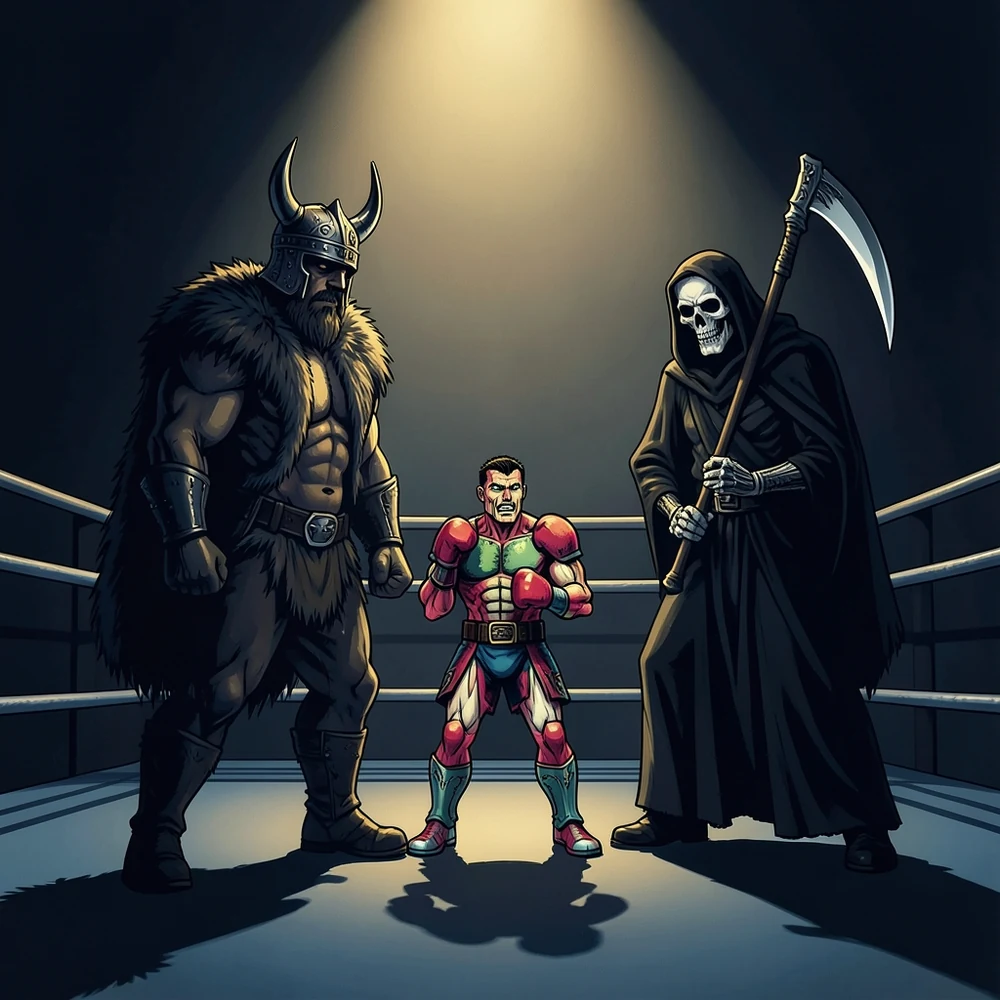
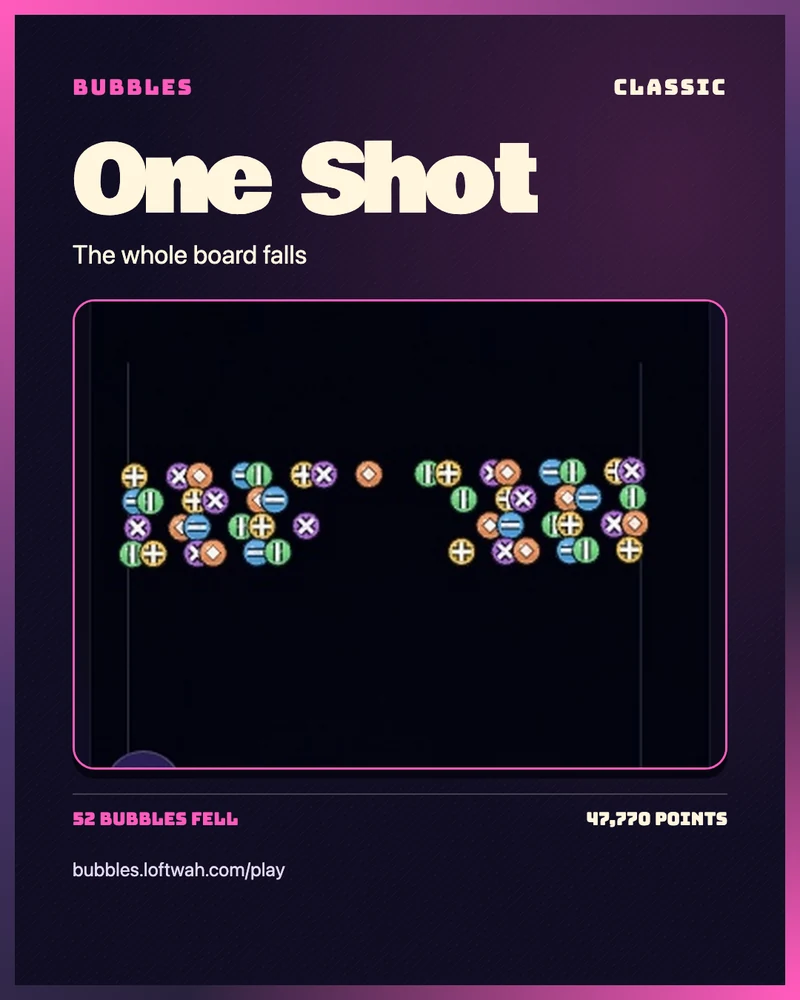
Album covers, arcade posters and the files in between. Explore the Loftwah Creative Archive, then bring your own images into Prints Desktop.
Installation and connection guide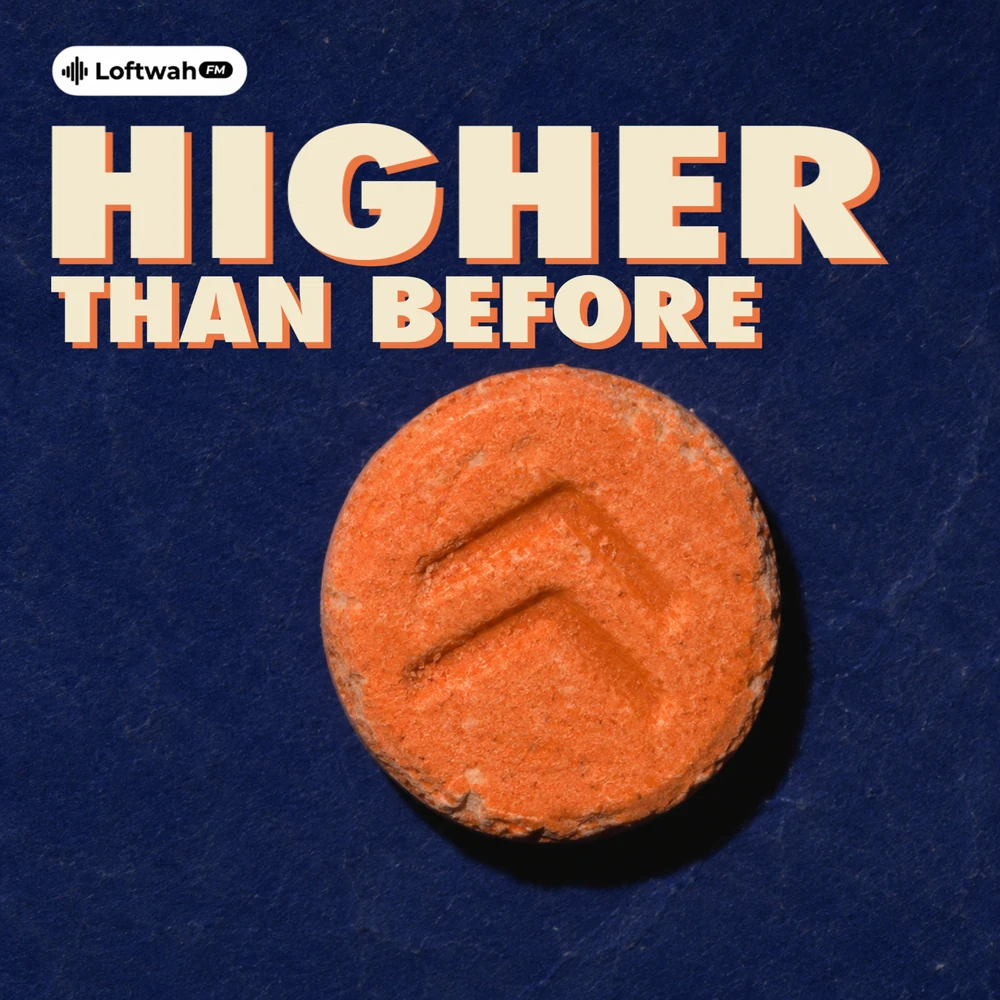
 Prints Desktop
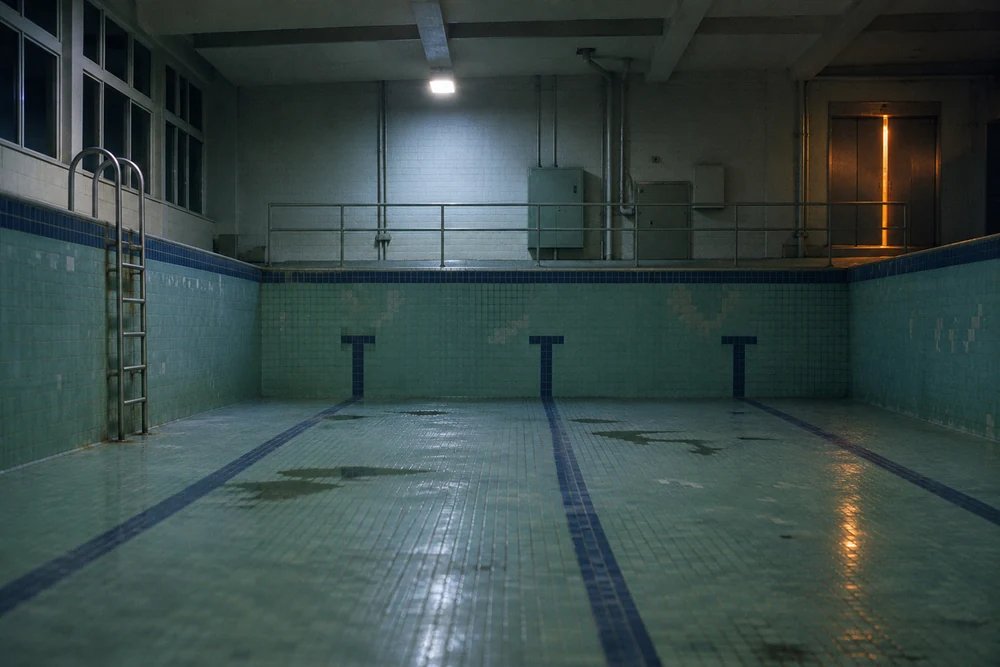
Which print gets the wall?
Six imaginary places. One spot on your wall. Pick a print and take the original home.
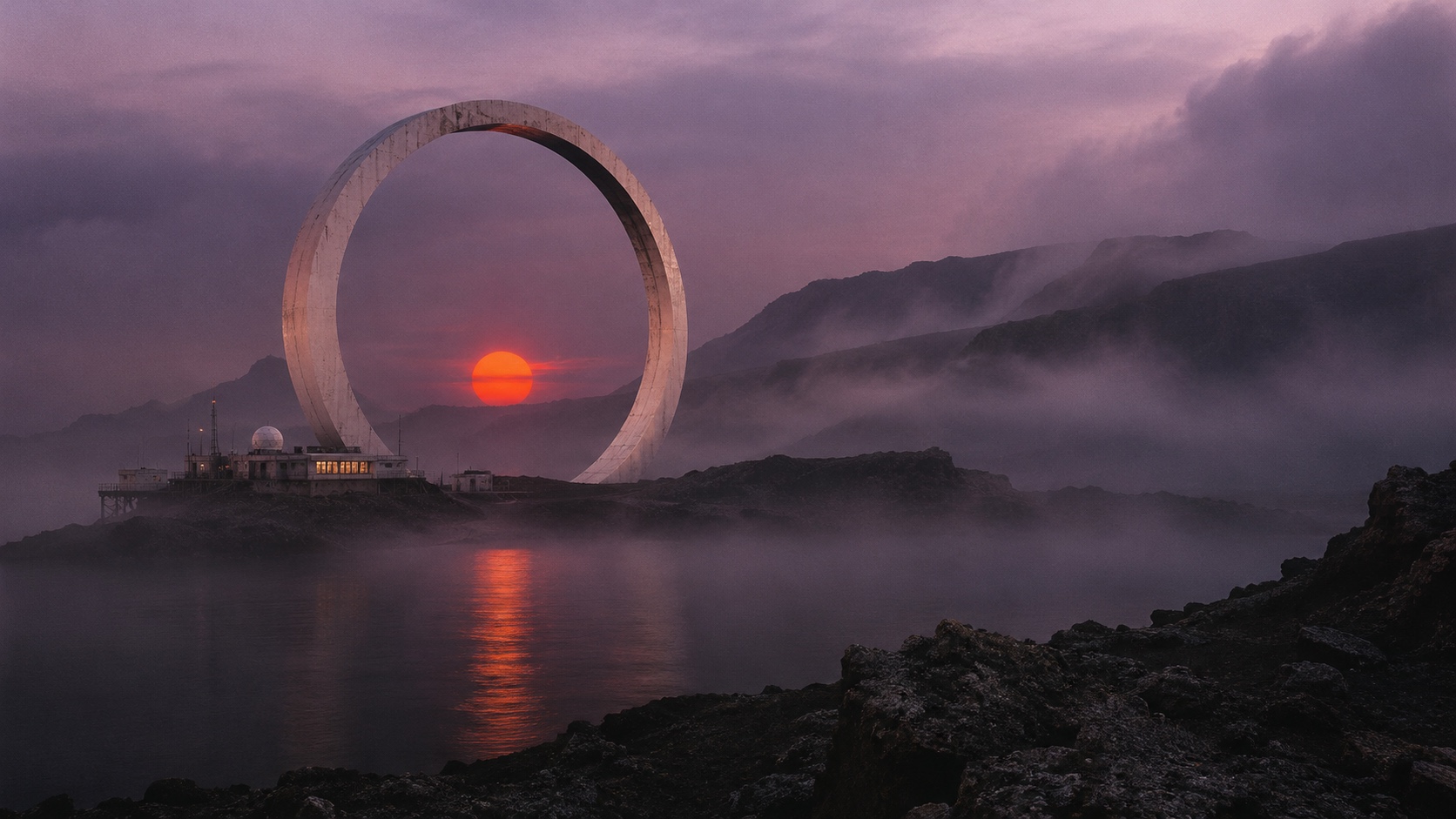
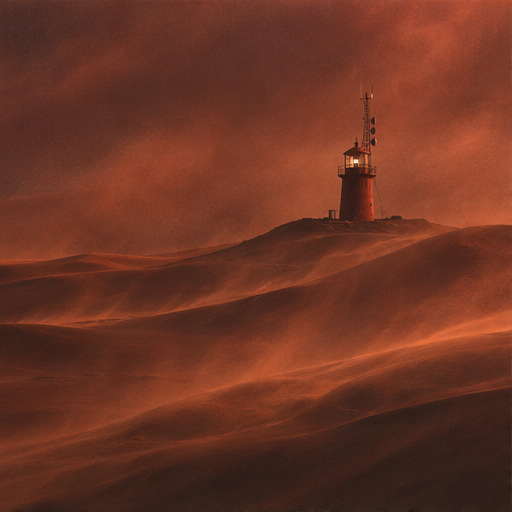
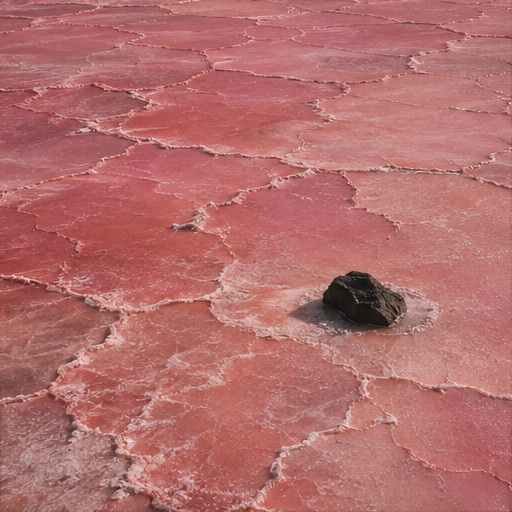
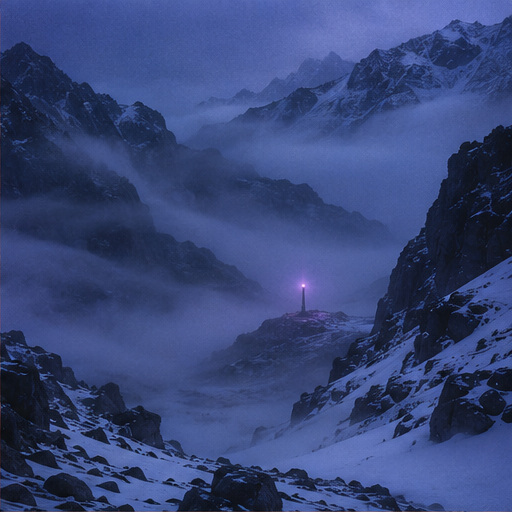

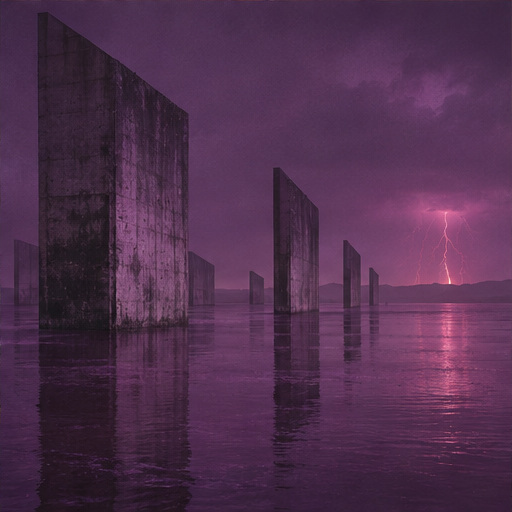
Now try it with your own photos.
Prints Desktop brings the contact sheet to your Mac, Linux or Windows desktop. Star the ideas worth coming back to, turn a brief into an editable draft and keep the original file when you export.
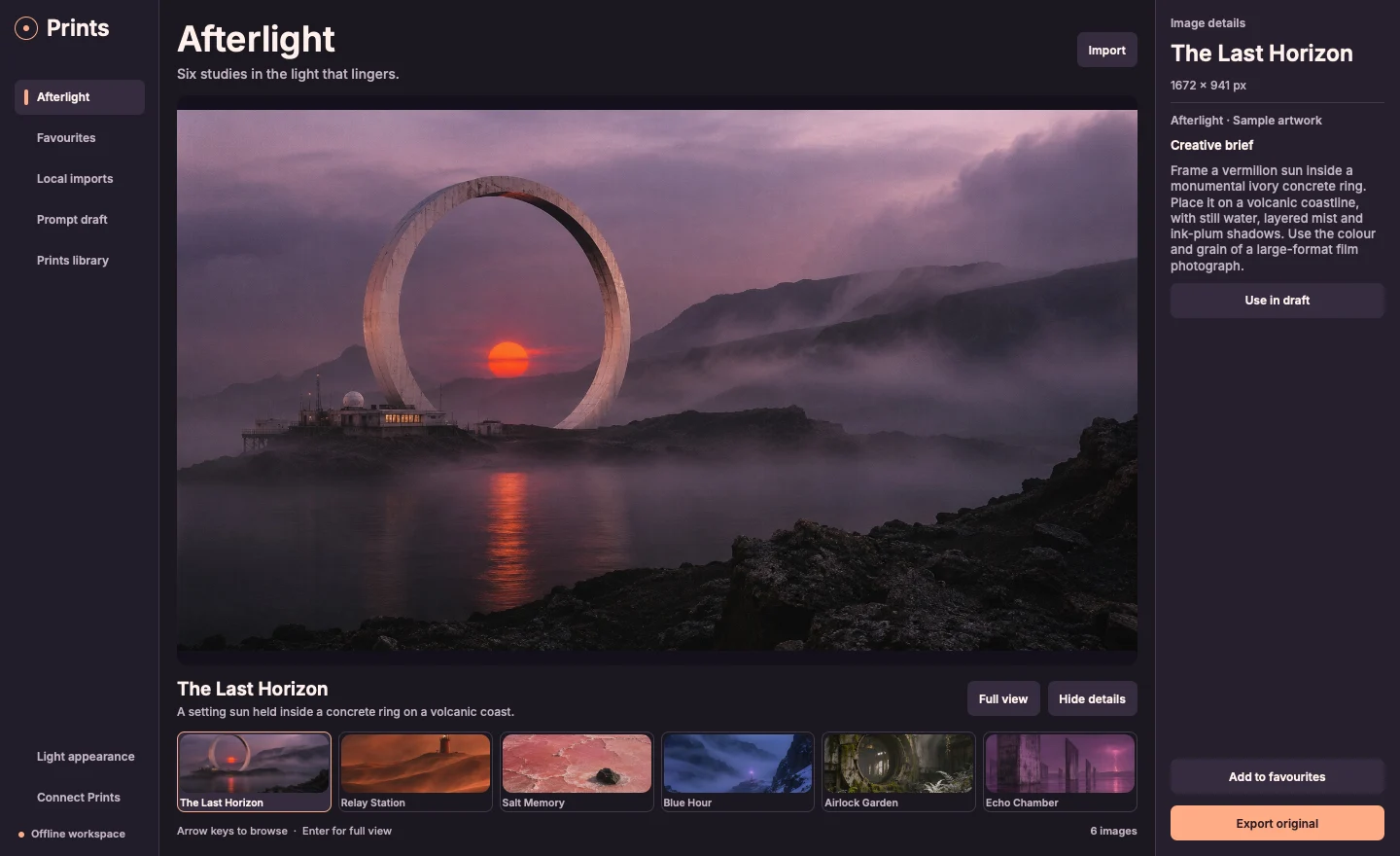
From first look to export.
Watch the native app browse Afterlight, save an original, draft a prompt and open an example Oyster library.
Read the walkthrough
- Open Afterlight and pick Blue Hour from the contact sheet. View it at full size.
- Add the study to Favourites, return to it and export the bundled JPEG.
- Copy the brief from The Last Horizon into a prompt draft and save it locally.
- Browse a folder and preview a print in an Oyster library seeded with fictional media.
Start offline or connect Oyster.
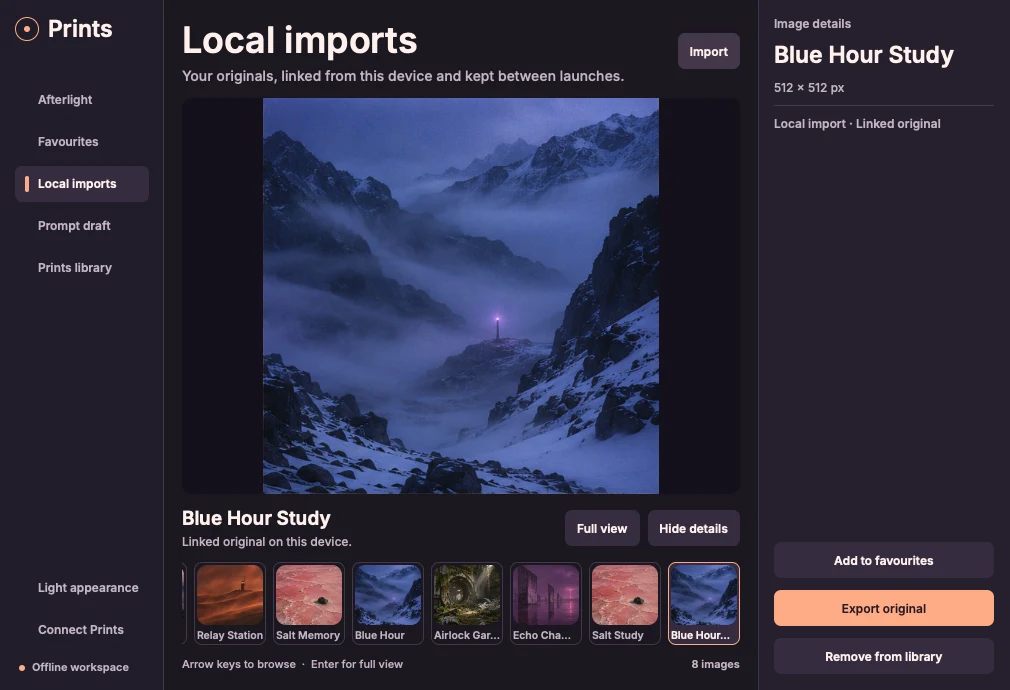
Start with your own files.
Drag in JPEG, PNG or WebP images. Linked originals and favourites reopen after you quit. If a file moves, find it again from the inspector.
The preview links up to 12 local originals. Afterlight, imports and saved drafts work without an account or model credits.
Connect a Prints library.
Enter your Oyster origin, Prints installation ID and a named read key scoped to that installation. Browse indexed output, inspect prompts and export originals. Folder and model discovery depend on the host.
Create in web Prints opens the upstream app for generation. Generation and recovery happen in web Prints. The desktop can remember your read key in your system credential store.
Read the connection guide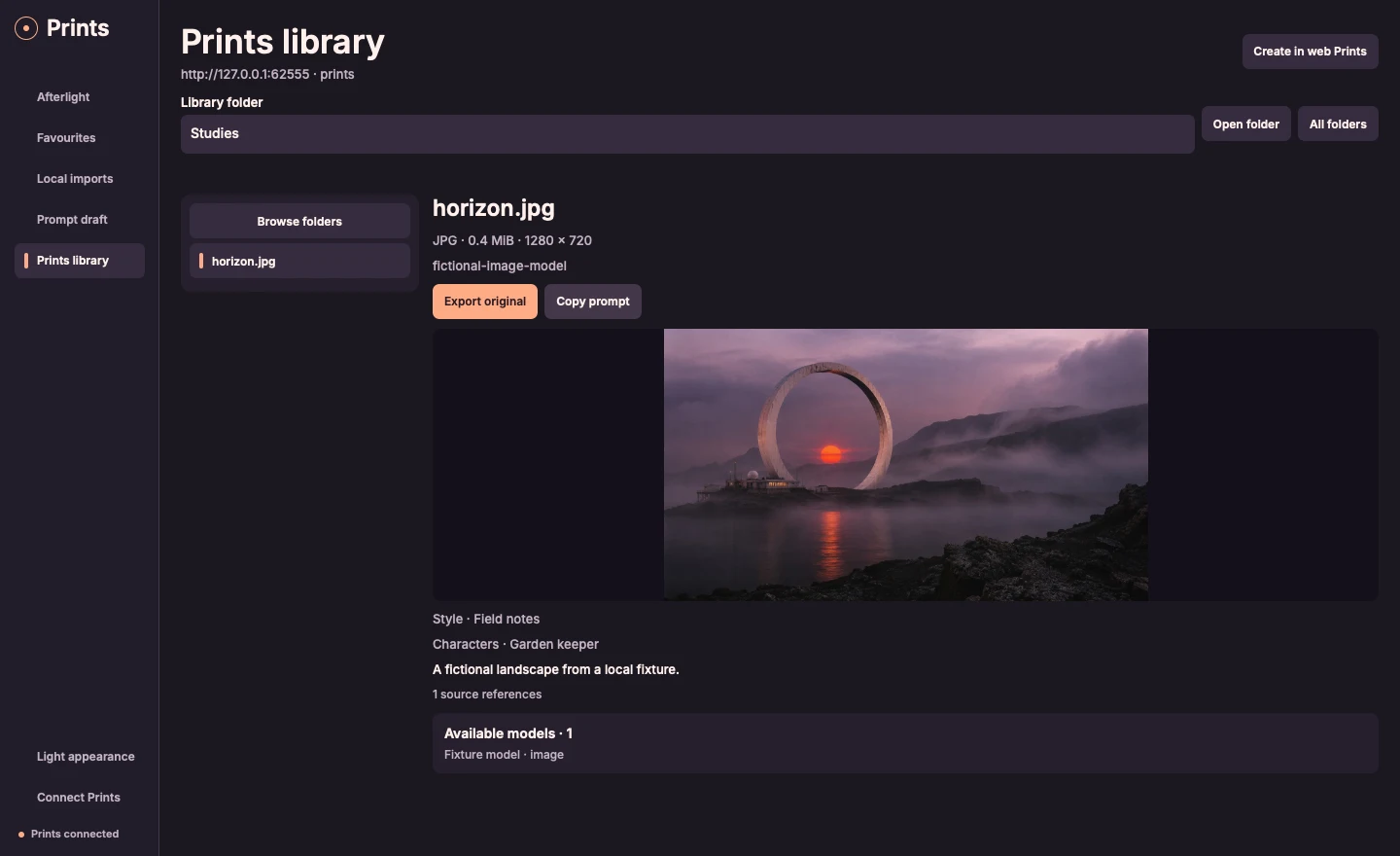
Who made what?
Follow the projects behind the demo, from the local Rust app to the Fungi tools that host and generate prints.
- Prints Desktop · Rune
- Loftwah’s independent Rust and Rune app. It runs the offline workspace and talks directly to Oyster for supported, authorised reads.
- Oyster and Prints
- Oyster hosts the Fungi app and checks access to the installation and selected Computer. Prints keeps the library index, prompts and media metadata. Original files live on the selected Computer.
- Darkroom
- Fungi’s generation and recovery layer. When you create through web Prints, the host and model determine availability and charges. A self-hosted Oyster can run Workers AI on your Cloudflare account.
- Fungi and Shiitake
- Fungi makes the connected creative tools. Shiitake is its terminal coding agent for working in a local project. Browse Afterlight or connect Oyster directly from Prints Desktop.
- App Composer
- The portfolio showcase, educational resources and optional publishing through Share. Prints Desktop ships from its own repository.
Get Prints Desktop.
v0.3.1 preview. Extract the archive for your platform, then open Prints Desktop.
Release notes, signing status and checksums- macOSApple Silicon · macOS 14+
- Linuxx64 · Portable archive
- LinuxARM64 · Portable archive
- Windowsx64 · Portable ZIP
The Mac preview is ad-hoc signed and unnotarised. macOS may block it when opened from a web download. See the release notes for platform verification.